From two CSV files to persistent cloud tables, conversational SQL, and compute that stops when you stop using it.
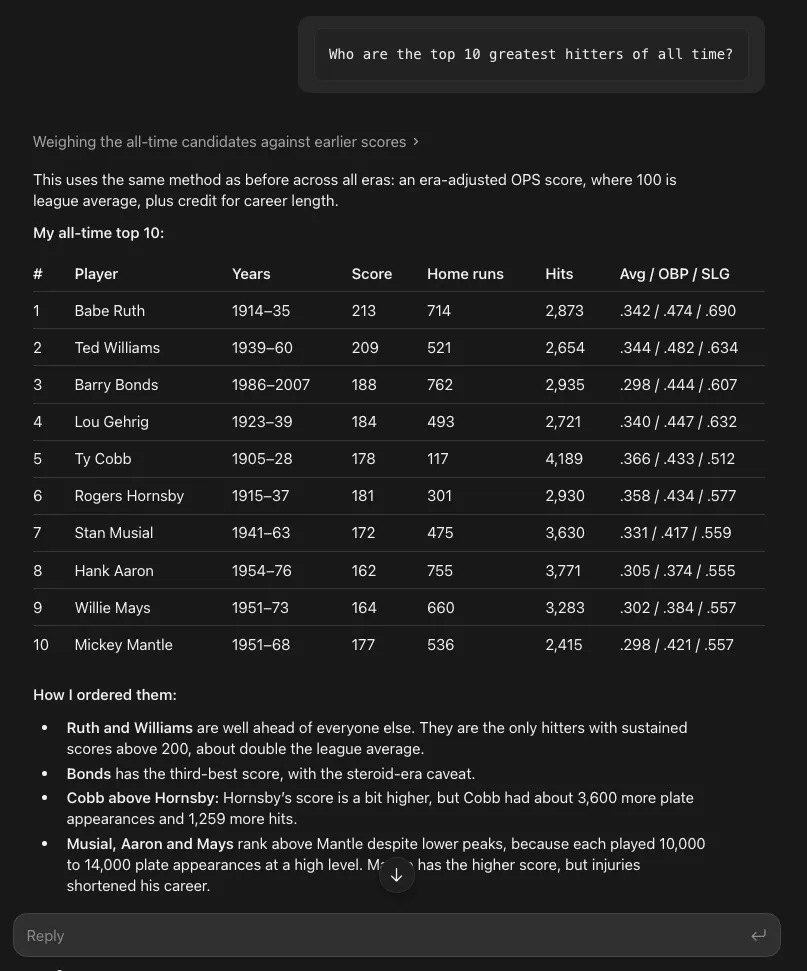
Baseball statistics. I've always wanted to ask AI this question but never really got around to it. This project gave me the opportunity and the purpose to do so: Who are the top 10 greatest hitters of all time?
Two CSV files were enough. One described the players. The other contained their batting statistics. The goal was to put them somewhere I could query with SQL, connect Claude Desktop, and ask questions without uploading the entire dataset into a conversation.
Then there was the feature I really wanted to try: let the cluster stop when I am not using it, and wake it back up when I ask another question. Here is the walkthrough.
What we are building
The platform is GizmoData Cloud, and the database server we selected is Hardcharger, GizmoData's DuckDB 2.0 server and GizmoSQL's successor. GizmoSQL remains available.
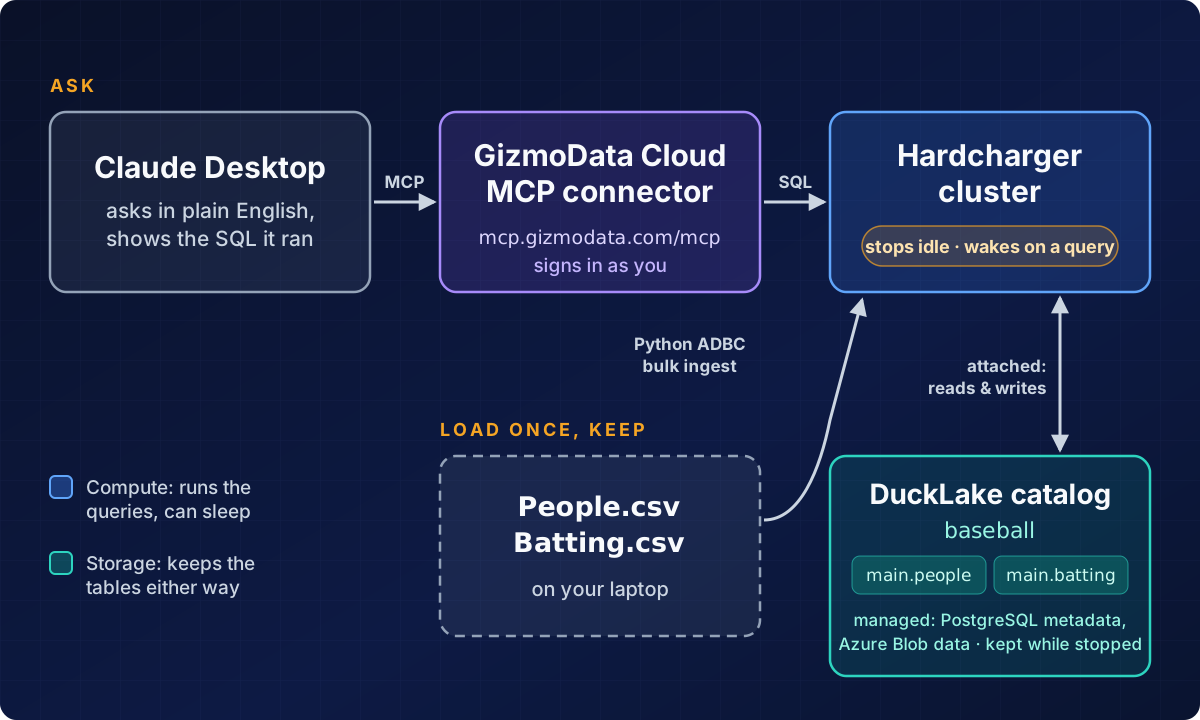
The important distinction is compute versus storage. The cluster runs the queries. The DuckLake catalog keeps the data independently of whether that cluster is running. The companion project contains the original Markdown walkthrough and CSV inputs; the dataset attribution and usage terms still apply.
Why not just DuckDB on a laptop?
For this exact project, it would be the better tool. Two CSVs, one person, one machine: pip install duckdb, read the files, point a local MCP server at the database file, and you're done. There's no cluster, no network hop and no bill.
That changes as soon as the data is for a team. With embedded DuckDB, sharing a DuckLake means giving everyone the PostgreSQL password for its metadata and the cloud-storage keys for its files. Those keys open everything: anyone holding them can read, change or delete any table, and taking access away means rotating the keys for everyone. A server earns its keep here:
- The keys stay on the server. GizmoData Cloud keeps the catalog's metastore and storage credentials in one place and gives them to the cluster, never to the people using it. Teammates get access to tables, not to buckets.
- Access down to the row. Grants on a schema, a table or single columns, row policies and column masking, all enforced by Hardcharger. Portal roles (admin, writer, reader) control who can manage clusters and catalogs.
- Claude sees only what you can see. The MCP connector signs in as you, and every statement it runs reaches Hardcharger under your account, with your grants, row policies and masking applied. An assistant can't see more than the person using it. When that person loses access, so does their assistant.
- Sign-in, not shared passwords. People use their own accounts (Hardcharger supports SSO with any OpenID Connect provider), and nobody pastes tokens into config files.
- An audit trail and monitoring. Hardcharger's audit log records who ran what, including questions that came in through Claude. The portal records every change to clusters and catalogs, and shows each cluster's CPU, memory and engine metrics; Hardcharger keeps query logs too.
And because the cluster stops when idle and wakes on the next question, a shared server doesn't have to cost the same as one running all day.
1. Create a small Hardcharger cluster
In the GizmoData Cloud portal, select your project and environment, then choose Create a Hardcharger Cluster. For this project, we used:
| Setting | Our choice |
|---|---|
| Cluster name | bold-eagle-240 (random) |
| Cloud and region | Microsoft Azure, East US 2 |
| Database server and image | Hardcharger, hardcharger-latest |
| Compute size | Azure shared Pico: 0.25 vCPU, 2 GB RAM |
| Authentication | Managed |
| Endpoint | Shared gateway, TLS on port 443 |
| Hardcharger web UI and Cloud sign-in | Enabled |
| Stop when idle | After 15 minutes |
| Auto-resume | Enabled |
| Auto-Stop | After 60 minutes running |
| Autoscaling | Off, one fixed replica |
We used Create & Start, then waited for the cluster status to become running.
The portal quoted $0.029 per compute hour for this size when we created it. That is a point-in-time compute price, not an all-inclusive bill: subscription, storage, and other applicable charges need to be considered separately.
Our initial sample allowed connections from any IP address. That is a demo choice, not a requirement; use appropriate network restrictions for your environment.
Follow along on your own cluster. Start free with $25 of launch credit, applied automatically.

2. Create a persistent catalog before loading data
An empty cluster is not automatically a persistent database. Our cluster initially had no database mounts. Creating tables in its default in-memory database would not give us the durability we wanted across stops and starts. Selecting a data-volume size in the wizard did not, by itself, create a mounted database file.
Instead, we created a managed DuckLake catalog:
- Open Data → Catalogs.
- Select Create Catalog.
- Choose DuckLake → Fully managed.
- Name it
baseball. - Keep it scoped to the project's development environment.
- Choose Microsoft Azure → East US 2, matching the cluster.
- Review the settings and create the catalog.
- Open the catalog, select Attach to running cluster, and choose
bold-eagle-240.
The managed catalog uses PostgreSQL for metadata and Azure Blob Storage for table data. We did not have to provision either ourselves. Once attached, we could target tables explicitly:
SELECT * FROM baseball.main.people;Here, baseball is the catalog, main is the schema, and people is the table. Using the full name avoids accidentally querying or creating something in an in-memory database.
3. Import the player and batting data
The source is the SABR Lahman Baseball Database, created by Sean Lahman. Consult its documentation and applicable usage terms for attribution and redistribution.
We used the two CSV files in the companion project:
| File | Destination | Rows | Columns |
|---|---|---|---|
People.csv | baseball.main.people | 24,270 | 25 |
Batting.csv | baseball.main.batting | 128,598 | 22 |
Those counts describe our files, not a guarantee about every Lahman release. People.csv contains names, biographical information, and a playerID. Batting.csv contains batting records by player, year, and stint, including team and league identifiers.
That last detail matters: one batting row is not necessarily one player's entire season. A player can have multiple rows in a year, so season and career questions need aggregation.
The loading approach
We used the official Python ADBC driver and PyArrow to read the local CSVs and stream Arrow data to the remote cluster. The server cannot read a path on my laptop just because I put that path in SQL. Install the dependencies in a virtual environment:
python3 -m venv .venv
.venv/bin/python -m pip install "adbc-driver-hardcharger>=2.5.0,<3" pyarrow
Save the following as import_baseball.py alongside the CSVs, then run .venv/bin/python import_baseball.py. Replace the hostname at the prompt with your cluster's endpoint:
1import getpass
2
3import pyarrow.csv as csv
4from adbc_driver_hardcharger import dbapi as hardcharger
5
6
7uri = input("Cluster URI (hardcharger://YOUR_CLUSTER_HOST:443): ").strip()
8username = input("Administrator username: ").strip()
9password = getpass.getpass("Administrator password: ")
10
11with hardcharger.connect(
12    uri=uri,
13    username=username,
14    password=password,
15    autocommit=False,
16) as conn:
17    with conn.cursor() as cur:
18        for filename, table_name in [
19            ("People.csv", "people"),
20            ("Batting.csv", "batting"),
21        ]:
22            data = csv.read_csv(
23                filename,
24                read_options=csv.ReadOptions(block_size=16 * 1024 * 1024),
25                convert_options=csv.ConvertOptions(strings_can_be_null=True),
26            )
27            cur.adbc_ingest(
28                table_name=table_name,
29                data=data,
30                mode="create",
31                catalog_name="baseball",
32                db_schema_name="main",
33            )
34            cur.execute(
35                operation=f'SELECT count(*) FROM baseball.main."{table_name}"'
36            )
37            actual = cur.fetchone()
38            if actual != (data.num_rows,):
39                raise RuntimeError(f"{table_name}: unexpected count {actual}")
40            print(f"{table_name}: {data.num_rows:,} rows verified")
41    conn.commit()
The interpolated table names come only from the fixed list above, not user input. For user-supplied query values, use bound parameters. mode="create" deliberately refuses to overwrite an existing table. This is a one-time import, not an append-every-time script.
PyArrow handled the byte-order mark in our people file and inferred integer statistics, string identifiers, and date columns. Empty fields became nulls under the reader's conversion rules; for a different CSV export, review those rules and inferred types before loading.
Verify more than a successful upload
For the actual import, we checked the row counts and player IDs before committing. Then we opened a new connection, read both tables back, and compared every value and column type with the parsed CSV data, ignoring row order. We also checked the relationship:
SELECT COUNT(*) AS unmatched_batting_rows
FROM baseball.main.batting AS b
LEFT JOIN baseball.main.people AS p USING (playerID)
WHERE p.playerID IS NULL;
The result was 0. We also verified that the people table had no null or duplicate playerID values. That validates the join for this dataset; it does not mean we created a database-enforced foreign key.
4. Try SQL in the Hardcharger web UI
Before adding an AI assistant, it helps to verify the database directly. From the cluster page, use Connect, or open:
https://YOUR_CLUSTER_HOST/ui/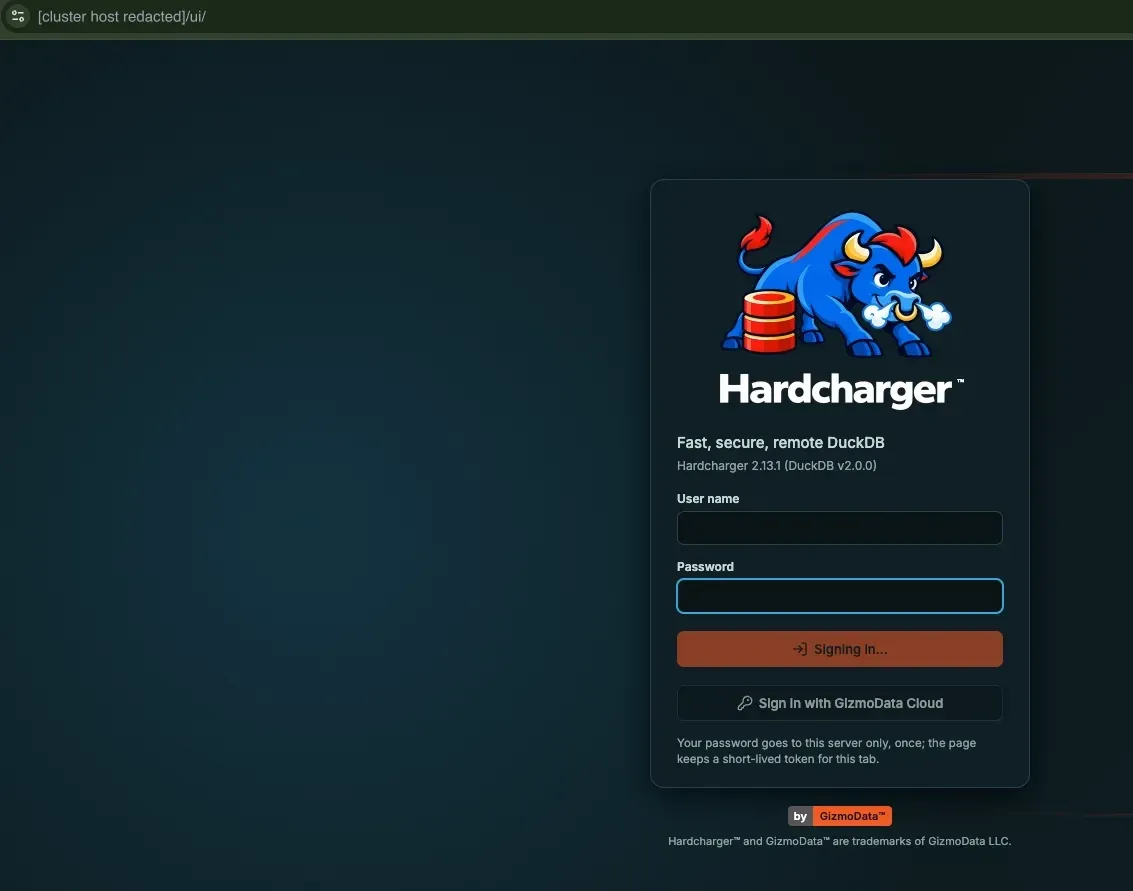
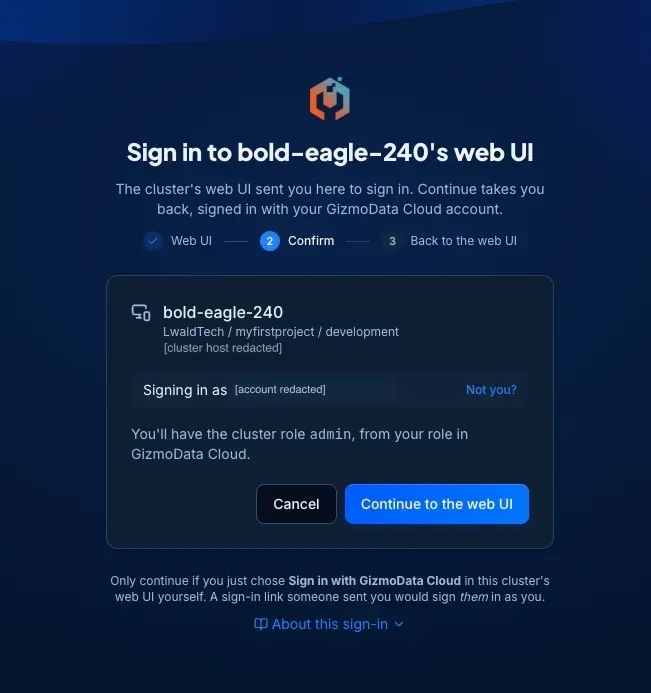
We enabled GizmoData Cloud sign-in when creating the cluster. The UI provides a SQL editor, a schema browser, and a results grid. Run this first:
SELECT 'people' AS dataset, COUNT(*) AS rows
FROM baseball.main.people
UNION ALL
SELECT 'batting', COUNT(*)
FROM baseball.main.batting;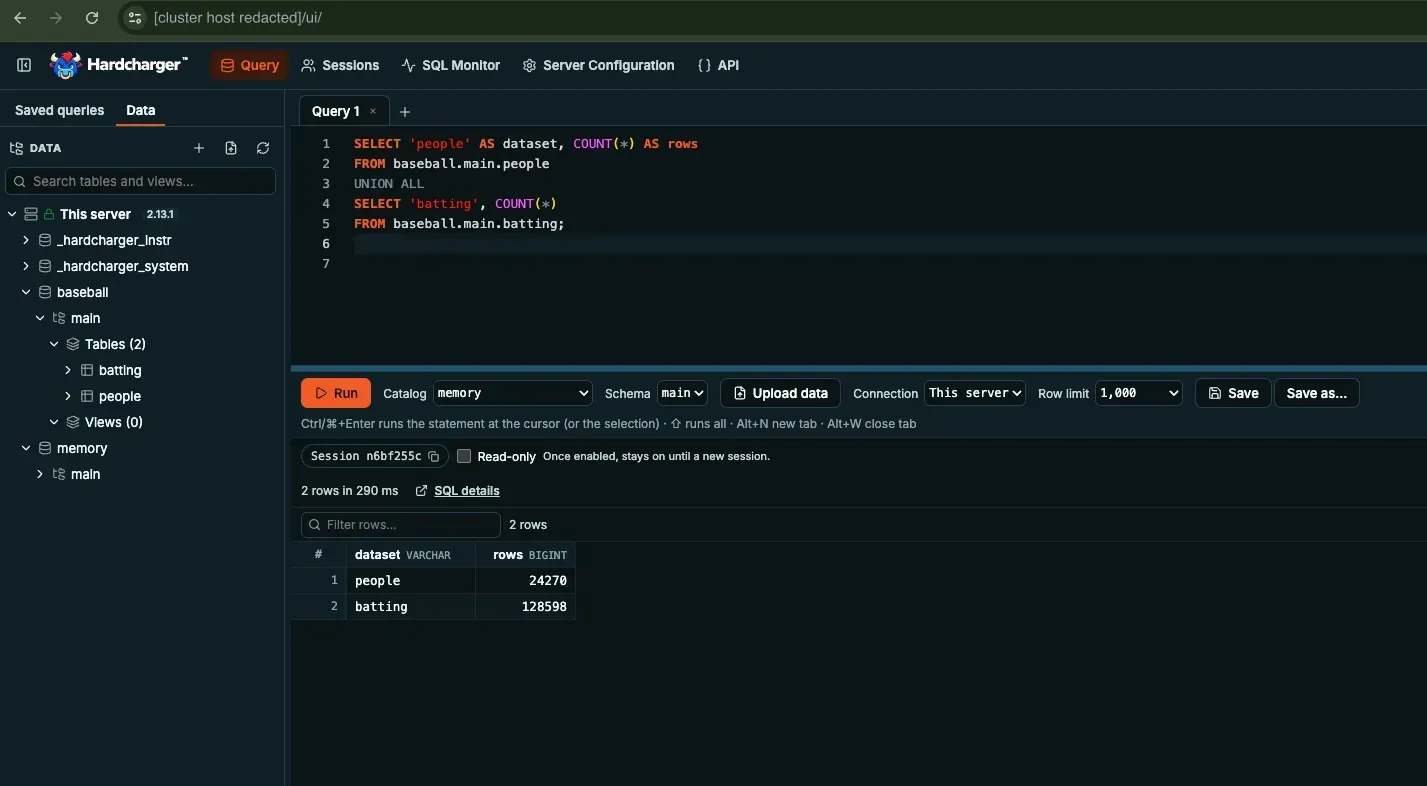
You should see the two counts from the import. On macOS, Command+Enter runs the current statement or selection.
5. Connect Claude Desktop through MCP
MCP gives Claude tools to discover schemas and run queries against the database. It is not the same as attaching the CSVs to a chat. For a managed Hardcharger cluster, the simplest current route is the hosted GizmoData Cloud connector.
Recommended: hosted connector with browser sign-in
In GizmoData Cloud, open AI Assistants and review the connection instructions:
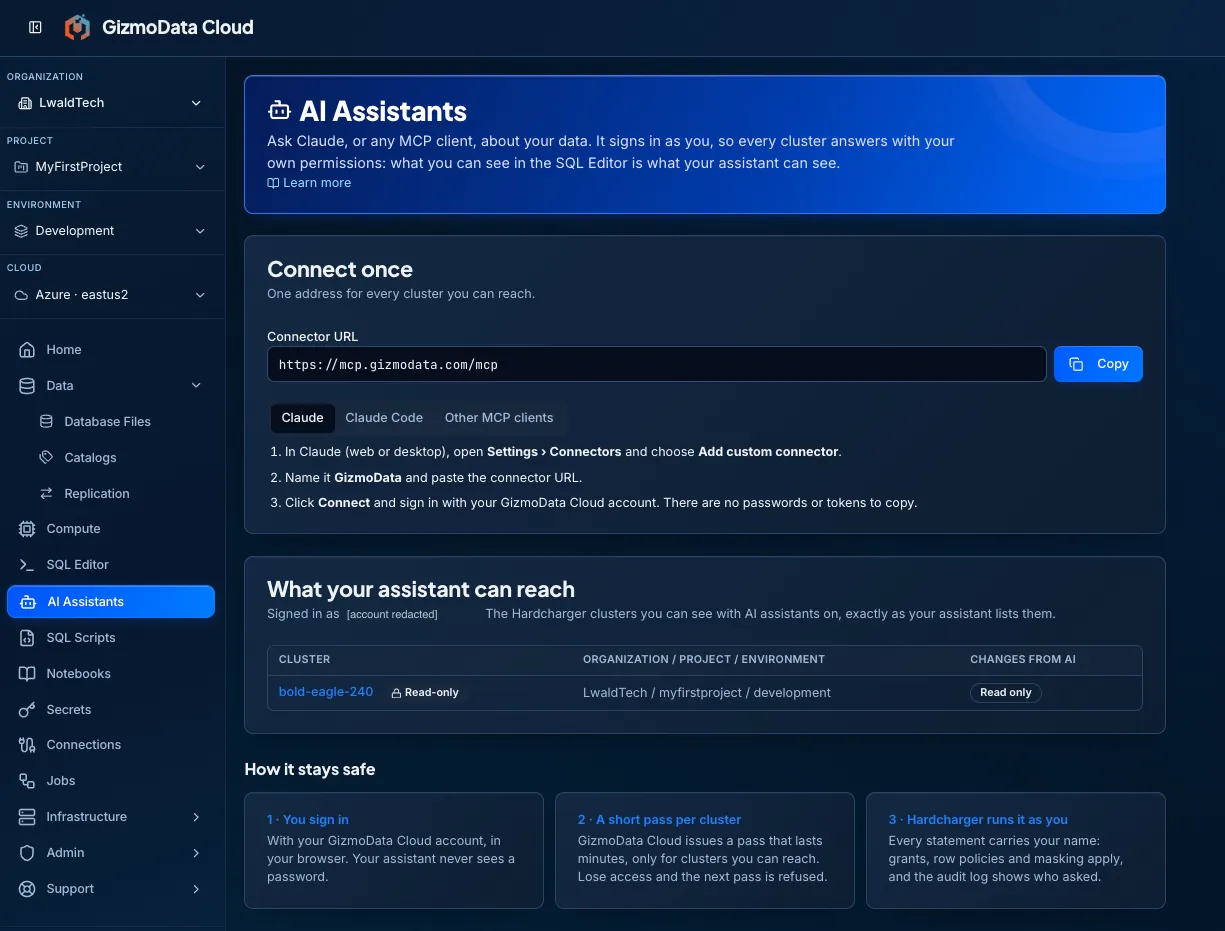
- On the cluster's AI Assistants settings, ensure Available to AI assistants is enabled. Leave changes disabled for this read-only exploration.
- In Claude Desktop, open Customize → Connectors and choose Add custom connector. Team or Enterprise accounts may require an administrator to add it first. Labels can vary by version; the portal screenshot shows Settings → Connectors.
- Name it
GizmoData Cloudand enter the remote MCP URL below.
https://mcp.gizmodata.com/mcp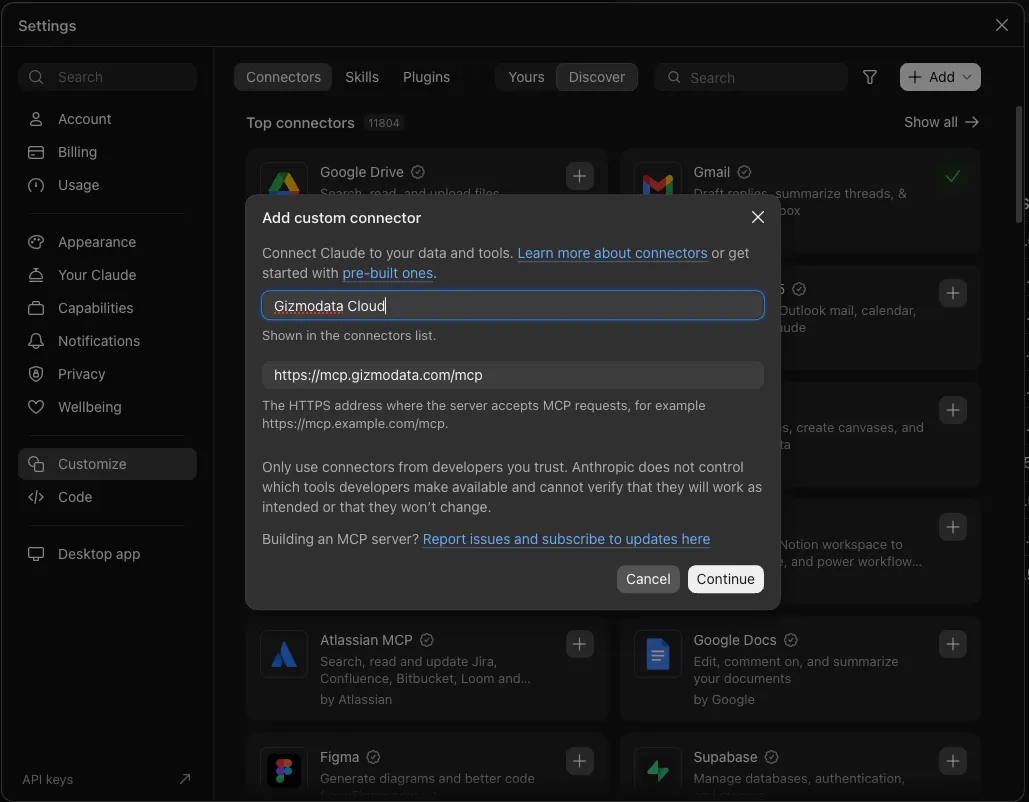
- Connect and complete the GizmoData Cloud browser sign-in.
- Enable the connector for the conversation and review tool permissions.
Use the MCP URL, not the cluster's SQL endpoint or /ui/ address. No cluster password, portal session token, or API key needs to be pasted into this connector configuration.
The connector operates with your GizmoData Cloud identity. For this project, keep assistant access read-only and review the SQL Claude proposes. A prompt asking for read-only behavior is useful, but it is not a substitute for enforced permissions.
Remote connectors send tool requests and results through the assistant provider's infrastructure. Only connect data you are authorized to share with that provider.
Alternative: the local Hardcharger Desktop extension
If you prefer a local MCP process configured for a particular server, the official Hardcharger MCP project also provides a Claude Desktop extension:
- Download
hardcharger-mcp.mcpbfrom its official releases. - Install it through Settings → Extensions → Advanced settings → Install Extension, or open the bundle.
- Enter
hardcharger://YOUR_CLUSTER_HOST:443and an appropriate credential in the extension's settings. - Enable Hardcharger in the conversation's connectors menu.
The extension marks credentials as sensitive and stores them in the operating system's keychain. Use a least-privileged credential rather than an administrator account for routine analysis. You only need one of these connection approaches.
6. Ask baseball questions, then inspect the SQL
Start by giving Claude clear boundaries:
Use the GizmoData Cloud connector and select my cluster. Inspect baseball.main.people and baseball.main.batting. Use read-only queries, show me the SQL, and do not invent columns or results.
Tool names differ between the hosted connector and local extension, so the important thing is the workflow: discover the schema, execute SQL, and explain the returned results.
Question 1: Who hit the most career home runs?
Join the batting records to the people table and show the top five players by total career home runs in this dataset. Group by player ID so players with the same name are not merged.
The SQL can look like this:
SELECT
    p.playerID,
    p.nameFirst,
    p.nameLast,
    SUM(b.HR) AS career_home_runs
FROM baseball.main.people AS p
JOIN baseball.main.batting AS b USING (playerID)
GROUP BY p.playerID, p.nameFirst, p.nameLast
ORDER BY career_home_runs DESC, p.playerID
LIMIT 5;
We verified the underlying career-home-run aggregation against the imported tables:
| Player | Career home runs |
|---|---|
| Barry Bonds | 762 |
| Hank Aaron | 755 |
| Babe Ruth | 714 |
| Albert Pujols | 703 |
| Alex Rodriguez | 696 |
These are totals in our imported data, not a claim that every historical comparison is complete or directly comparable across leagues and eras.
Question 2: Who had the highest batting average in 2024?
Find the ten highest batting averages in 2024 among players with at least 400 at-bats. Aggregate all stints for each player first. Show hits, at-bats, and batting average, and explain that this is my chosen cutoff, not the official batting-title qualification rule.
WITH season AS (
    SELECT
        playerID,
        SUM(H) AS hits,
        SUM(AB) AS at_bats
    FROM baseball.main.batting
    WHERE yearID = 2024
    GROUP BY playerID
    HAVING SUM(AB) >= 400
)
SELECT
    p.nameFirst,
    p.nameLast,
    s.hits,
    s.at_bats,
    ROUND(s.hits * 1.0 / NULLIF(s.at_bats, 0), 3) AS batting_average
FROM season AS s
JOIN baseball.main.people AS p USING (playerID)
ORDER BY
    s.hits * 1.0 / NULLIF(s.at_bats, 0) DESC,
    p.playerID
LIMIT 10;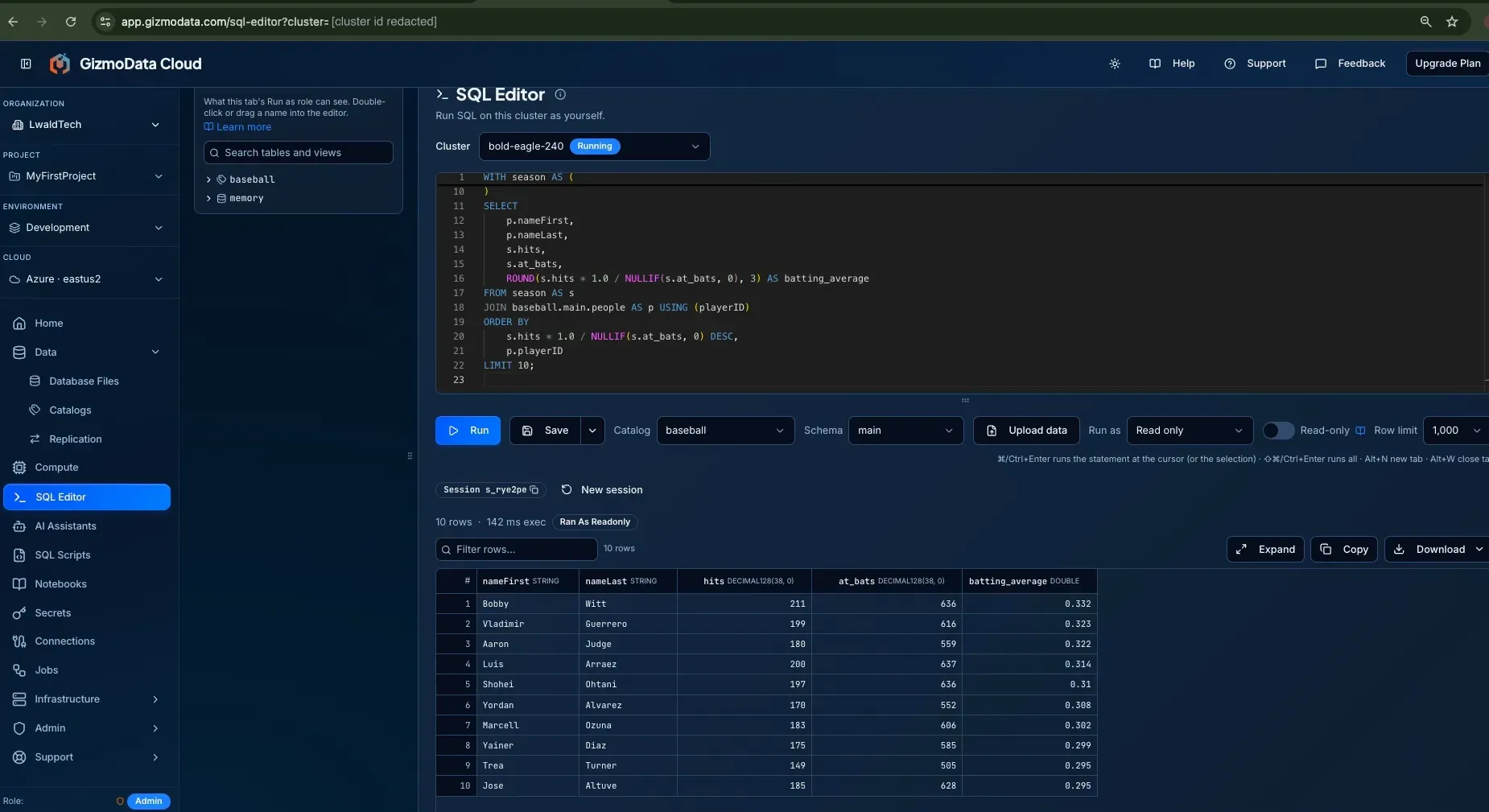
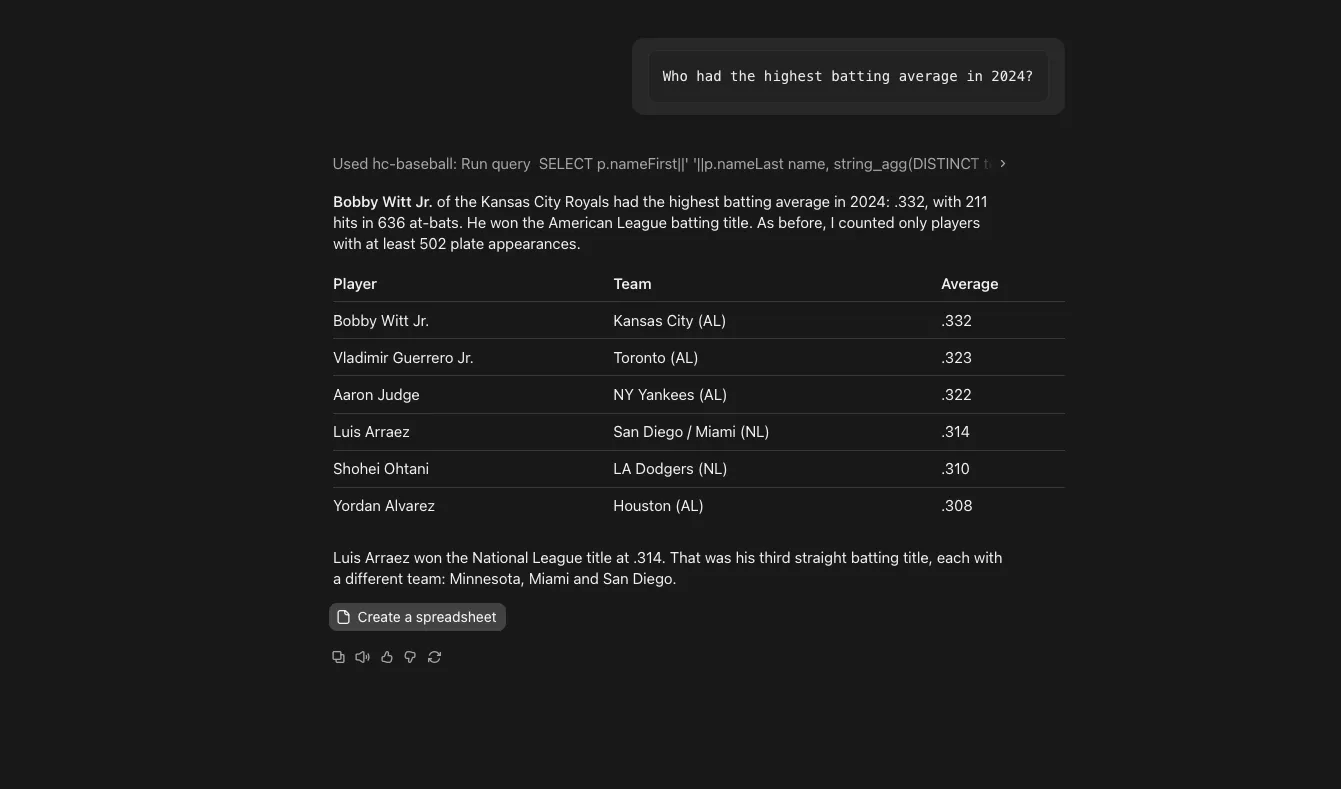
Notice that we sort by the unrounded average, not the displayed three-decimal value.
Question 3: Show a player's career over time
Find Hank Aaron by player ID, then show his hits and home runs by year. Combine multiple stints within each year. Explain the trend using only the returned data.
SELECT
    yearID,
    SUM(H) AS hits,
    SUM(HR) AS home_runs
FROM baseball.main.batting
WHERE playerID = 'aaronha01'
GROUP BY yearID
ORDER BY yearID;
The point is not to stop thinking about SQL. It is to shorten the path from a question to a query you can inspect and reproduce.
7. The fun part: let the cluster sleep, then ask another question
Our cluster has three related but distinct settings:
| Feature | What it does |
|---|---|
| Stop when idle: 15 minutes | Stops compute after the configured period without qualifying SQL activity |
| Auto-Stop: 60 minutes | Stops the cluster after that much running time, even if it has been used |
| Auto-resume | Lets an authenticated connection through a supported client start eligible stopped compute |
The 60-minute timer is not an idle timer. Its clock restarts each time the cluster starts.
Run the same experiment, end-to-end
- Run a small query through Claude to confirm the MCP connection works.
- Stop issuing SQL. Pause other clients, scheduled jobs, or refreshes that could keep the cluster active.
- Wait for the idle window and confirm the portal shows stopped. Leave enough time for shutdown to finish.
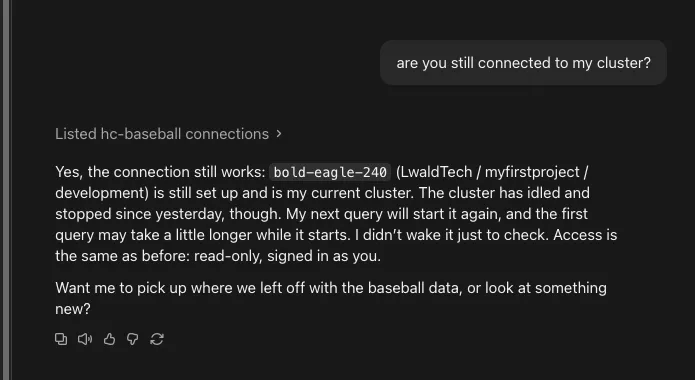
In Claude, ask:
Run a fresh query against baseball.main.batting on bold-eagle-240 and tell me how many rows it contains. Do not reuse the answer from our earlier conversation.
- Approve the tool call if prompted.
- Watch the cluster start, wait for the query to complete, and check the returned count against the import: 128,598.
- Confirm that the tables are still available without reimporting either CSV.
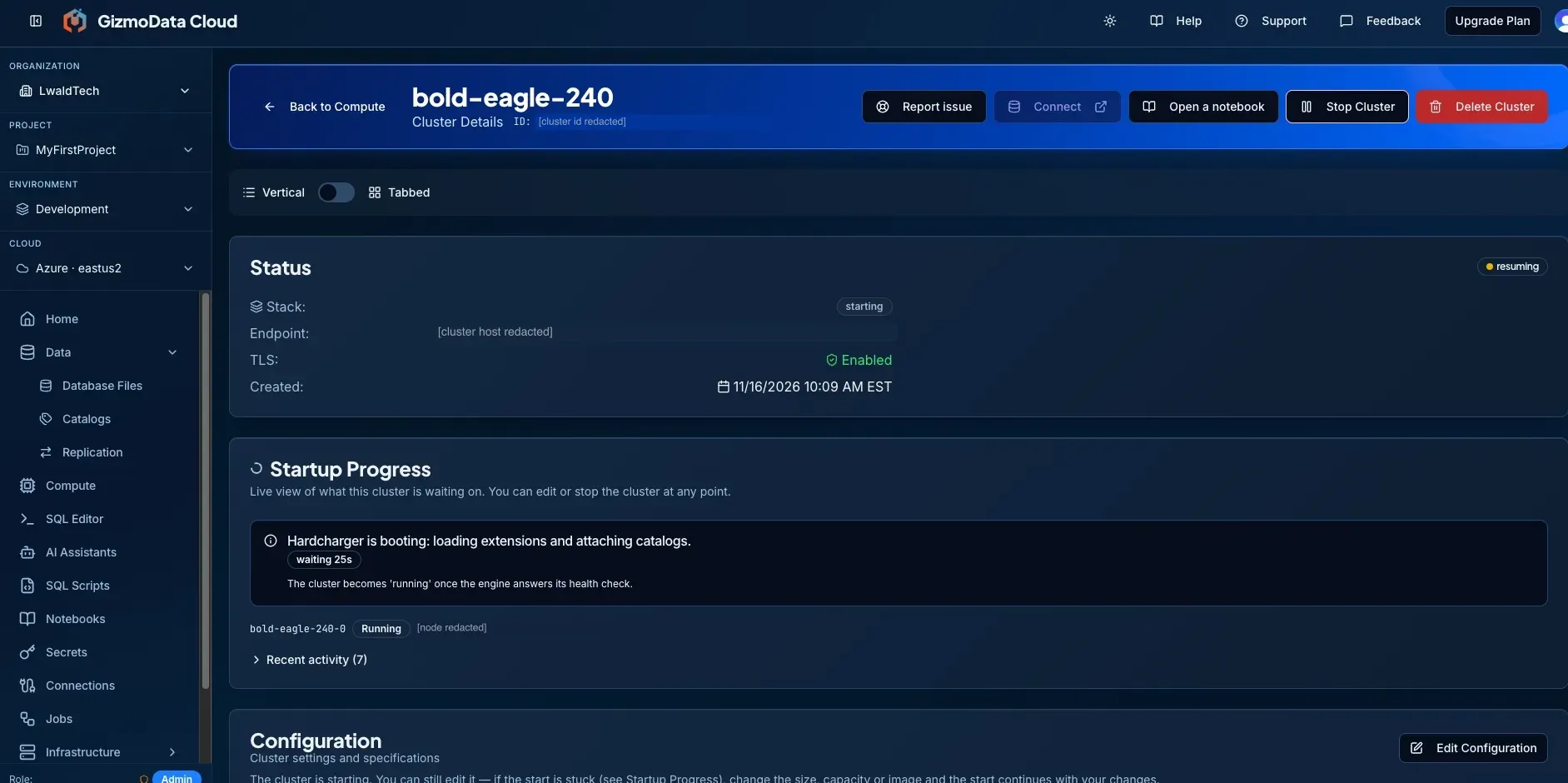
The documented behavior is that a valid authenticated connection starts eligible stopped compute, and the hosted MCP connector waits for it to become ready. Invalid credentials do not start the cluster.
The first request is not instantaneous: GizmoData currently describes roughly 30 seconds for shared-compute resume, with startup work and capacity affecting the actual wait.
That is the cool part: I can come back with another baseball question instead of first remembering to turn the database on.
A few important boundaries
- Auto-resume must be enabled on an eligible cluster. Our managed-authentication, single-replica, non-autoscaling Hardcharger configuration matches the documented requirements.
- Use the hosted MCP connector or another explicitly supported client for this demo. The current Cloud documentation says the portal SQL editor and web UI still require Start; do not assume every client behaves identically.
- Storage persists and is billed separately while compute is stopped. Subscription fees and any other applicable resources do not disappear either.
- Our shared gateway has no extra endpoint charge. A dedicated load balancer retained for auto-resume can still incur charges while stopped.
- Data survives because it is in the persistent catalog, not because stopping magically preserves an in-memory database.
What I like about this setup
We started with two CSVs and ended with a small, persistent baseball dataset that supports both direct SQL and conversational exploration. The stack is easy to reason about:
- DuckLake keeps the tables independent of the cluster's lifetime.
- Hardcharger runs DuckDB queries against them.
- MCP lets Claude discover and query the data through authenticated tools.
- Idle stop and automatic resume let compute rest between periods of use.
For a project like this, that last combination is especially appealing: the data stays ready, without requiring the query engine to stay running all day.
Finally, the answer :)
Here is Claude's take on the question that started the project. Unlike the career-home-run query above, "greatest" is a judgment call. This screenshot is an illustrative, Claude-generated ranking, not a reproducible SQL metric or an independently validated cross-era analysis. Ask for the scoring formula and supporting queries before treating any such ranking as evidence.
Your turn at bat
Ask your own data questions on GizmoData Cloud
Start free with $25 of launch credit, applied automatically. No credit card needed. Create a small Hardcharger cluster, attach a managed DuckLake catalog and connect Claude, then let the cluster sleep between questions.
References
- GizmoData Cloud: clusters, catalogs, AI assistants, and automatic resume
- SABR Lahman Baseball Database
- Hardcharger Python ADBC driver
- Hardcharger bulk ingest
- Hardcharger web UI
- Official Hardcharger MCP server and Claude Desktop extension
- Claude custom connectors using remote MCP
- Companion project: source Markdown and baseball data